


Remote-control setup
Use an old Apple Watch as an iPhone camera remote, Apple TV remote, or smart-home controller, with the right pairing and connection setup.
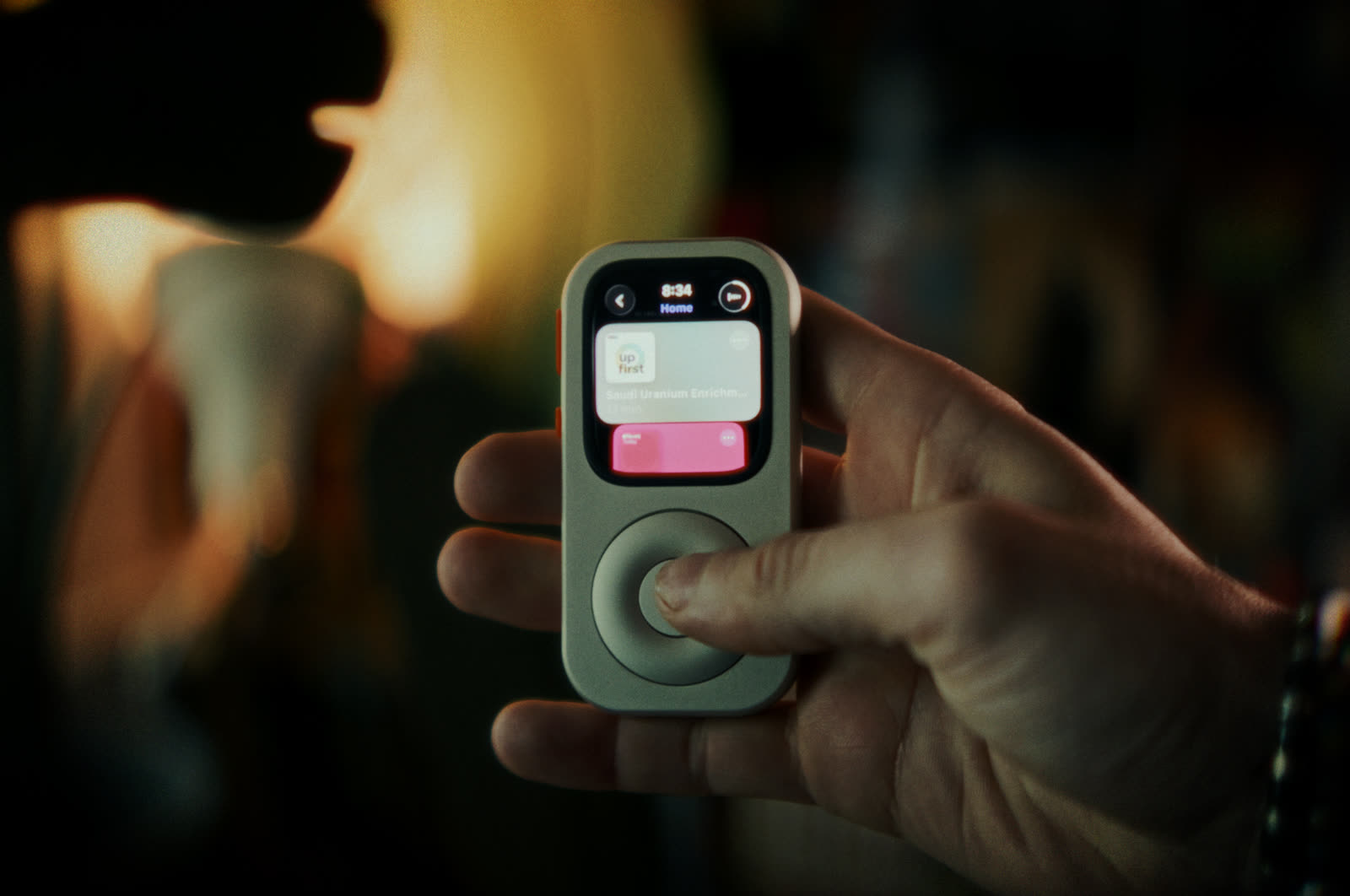
An old Apple Watch can serve as a compact remote for the paired iPhone camera, a compatible Apple TV, and accessories already configured in Apple Home. Keep the Watch paired, update its software, place the relevant apps within easy reach, and test every connection where you will use it. Compatibility depends on the Watch, iPhone, Apple TV, home accessories, accounts and network.
Choose one remote role first
Remote control is a strong second life for a Watch because the sessions are brief and specific. You open one app, make one adjustment, and put the device down. That pattern can suit an older battery better than a full day of continuous wrist use, as long as the Watch is safe and holds enough charge for the planned session.
Start with the remote you will use most often. Give the Watch a simple face, move that app to a prominent complication or Dock position, and reduce unrelated notifications. Add another remote only after the first setup feels dependable.
| Role | Useful controls | Required setup |
|---|---|---|
| iPhone camera remote | Live preview, shutter, timer, focus point and selected camera options | The Apple Watch remains paired with the iPhone, Camera Remote is available, devices are within working range, and the iPhone is positioned securely. |
| Apple TV remote | Navigation, playback, back, TV controls and text entry support through the Apple ecosystem | A compatible Apple TV, current software, appropriate account and network setup, and initial pairing when requested. |
| Smart-home remote | Accessory controls, scenes, room views, cameras and intercom features supported by the home | Accessories already added to Apple Home, correct home permissions, a functioning home hub where required, compatible software and network access. |
1. Turn the Watch into an iPhone camera remote
Apple’s Camera Remote app shows a view from the paired iPhone camera on the Watch. You can position the iPhone across the room, check the framing from the Watch, choose a focus point in the preview and trigger the shutter. Apple also provides a timer and selected camera controls, depending on hardware and software.
This works well for group photos, overhead process shots, product photography and any scene where touching the phone would disturb the composition. Use a stable tripod or support, confirm the iPhone cannot fall, and keep both devices within their working connection range.
- Secure the iPhone. Mount or place it on a stable surface, open the desired camera view, and check the lens.
- Open Camera Remote. Launch the app on the Watch and wait for the live preview from the paired iPhone.
- Set the frame. Move people or objects while watching the preview. Tap the preview to choose a focus point where supported.
- Choose timing and options. Use the three-second timer when everyone needs time to settle. Review available flash, Live Photo or camera controls for the current setup.
- Capture and review. Trigger the shot, then check the result before moving the phone or ending the session.
Range is a condition, not a promise
Camera Remote depends on communication between the paired Watch and iPhone. Walls, interference, device state and software can affect reliability. Test the exact location before using it for a one-time moment.
2. Keep an Apple TV remote nearby
The Apple Watch Remote app can control a compatible Apple TV. It provides navigation and playback controls in a small interface that is useful when the physical remote has wandered between cushions or another person has the iPhone.
For the current Apple TV 4K setup, first join its Wi-Fi network on the paired iPhone if that iPhone has never used the network. Open Remote on the Watch, choose the Apple TV 4K or tap Add, then enter the code displayed on the Watch. Apple describes the remote connection as Bluetooth. Keep the Apple TV awake when using it; for older software, select the matching version in Apple’s guide.
Give the Watch a charger beside the seating area and open Remote from a complication or recent apps.
Pause, resume or navigate compatible Apple TV content while your hands are occupied. Keep the device away from water and heat.
Leave the Watch in a known household place. Use a passcode and account settings appropriate for anyone who can reach it.
Compare the Watch interface with the physical remote and iPhone Remote. Keep the control method that feels clearest for the household.
Keep the app near the front of the interface, turn off unnecessary alerts, and charge the Watch after use. If the Apple TV disappears from the list, confirm both devices are awake, updated and connected as Apple’s guide requires before rebuilding the setup.
3. Create a small smart-home controller
The Home app on Apple Watch can show homes, rooms, scenes, accessories and supported cameras configured through Apple Home. A focused Watch can put a few recurring actions—such as “Good night,” a reading light or a front-door camera—behind a small screen rather than the full phone interface.
The Watch does not create compatibility for an accessory. The accessory must already work with Apple Home and be assigned to the correct home and room. Remote access and automations can require an eligible home hub, current software and a stable internet connection. Shared users need the correct invitation and permissions.
- Build the home on iPhone first. Add accessories through Apple Home, name them clearly, assign rooms, and confirm each control works from the iPhone.
- Create a few useful scenes. Combine recurring actions under plain names such as Reading, Movie or Good Night.
- Open Home on the Watch. Check that the expected home, rooms, scenes and accessories appear under the same account.
- Test locally and remotely. Try the controls on the home network. If you expect access away from home, test it separately with the required hub and internet connection.
- Review permissions. Limit shared access to what each household member needs, especially for locks, garage doors, cameras and security accessories.
Remote Watch setup checklist
- The Watch is compatible with its paired iPhone and current software.
- Battery runtime covers the intended remote session.
- The primary remote app is visible from the face, Dock or app grid.
- The iPhone camera is stable and within working range.
- The Apple TV appears and accepts controls.
- Apple Home accessories work on iPhone before Watch testing.
- Home hub, account and network requirements are met where needed.
- Sensitive home controls have appropriate user permissions.
- The Watch has a predictable charging and storage place.
A handheld shape can make the role obvious
Keep a listed compatible Watch in Techpod RePod beside the sofa or tripod. Its handheld body gives you something to pick up for those brief controls. The wheel-control guide explains the case’s physical controls.
Off-wrist use can change wrist-dependent features, so test the controls you plan to use and match the exact Watch generation and size to the selector.
Frequently asked questions
Can Apple Watch control the iPhone camera from another room?
It can work within the active connection range between the paired Watch and iPhone. Walls, interference and device state can change that range. Confirm the live preview and shutter response from the exact shooting position before relying on it.
Can any Apple Watch control Apple TV?
Support depends on the Watch, watchOS, Apple TV model, tvOS and setup. Use Apple’s current Watch and Apple TV guides for the devices you own, then complete any on-screen pairing step.
Can Apple Watch control devices outside Apple Home?
Some manufacturers provide their own watchOS apps, while Apple’s Home app controls accessories and services configured in Apple Home. Capabilities, accounts and network requirements differ by manufacturer. Verify the exact app and accessory before building the routine.
Does RePod turn Apple Watch into a universal remote?
No. RePod is a physical case for listed compatible Apple Watch models. It does not add infrared, radios, apps, network range or accessory support. The Watch and the connected devices determine which controls are available.
Sources
Remote-control references
A handheld home for three small controls
Put a compatible Watch within easy reach.
Make the remote setup dependable first. Then compare the exact Watch generation and case size with the current RePod selector.