

The quick answer
The best Apple Watch Shortcuts handle a repeated task in one tap or one Siri request. Start with directions home, a voice note, a prepared album, an errand Focus, a Home scene, a route back to your parked car and a one-tap screen mode. Build each shortcut on the paired iPhone, turn on Show on Apple Watch, and test it from the Watch before adding it to a watch face, Smart Stack or Action Button.
A shortcut can appear on Apple Watch and still fail when one of its actions needs the iPhone, a connection, an account or an unsupported app. The least-compatible action sets the limit for the whole routine.
Set up an Apple Watch Shortcut in two minutes
Open the Shortcuts app on your iPhone, create or choose a shortcut, open its details and enable Show on Apple Watch. Apple says compatible shortcuts then appear in the Apple Watch folder on iPhone and in the Shortcuts app on the Watch. Run the shortcut once from the Watch app before giving it a faster launch point. Apple’s Watch guide explains the basic setup and compatibility rule.

- Keep the first version short: one to three actions is easier to diagnose.
- Replace typing prompts with fixed choices, dictated input or values you have already supplied.
- Run every branch on the Watch with the phone nearby.
- Repeat the test under the conditions you care about: offline, on Wi-Fi or on cellular.
1. Directions Home
A one-tap route home is the ideal first Watch shortcut: the destination stays fixed, the outcome is obvious and Apple specifically uses directions home as a Watch shortcut example. Create a shortcut that opens directions to your saved home address, name it something easy to say, then try it outdoors before depending on it.
Live directions need current map data and location access. Results vary with the Watch model, software, region and connection. If you want this shortcut for a phone-free walk, test the exact route with the iPhone left behind.
2. Record a Thought
Use a short voice-note shortcut for the idea that arrives while you are walking, carrying groceries or standing on a platform. The cleanest version starts a recording or opens your preferred recording app with as little input as possible. Give it a simple Siri phrase such as “Record this.”
Apple Watch can make recordings in Voice Memos away from its paired iPhone, but a custom shortcut may use different actions or another app. Confirm where the file is saved, whether it syncs later and whether the shortcut finishes when the phone is out of range.
3. Play the album waiting for you
Choose one album or playlist before you leave, then make it the destination of a playback shortcut. Apple includes playlist creation among its shortcut examples; for a Watch routine, prepared playback keeps the number of choices small. The useful moment is immediate: headphones on, one tap, music playing.
Download the audio to the Watch when you want offline listening. Streaming depends on the app, account, subscription and available Wi-Fi or cellular service. Test the shortcut after disconnecting the iPhone so you know whether it opens downloaded audio, waits for a network or hands the task back to the phone. Apple lists functions available away from a paired iPhone.
4. Start an Errand Focus
Create a shortcut that turns on a named Focus for the length of a typical errand. The Focus can quiet the apps and people you have chosen while you shop, pick up a package or walk to lunch. A second shortcut can turn it off when you return, or you can give the Focus a time limit.
Keep the action narrow. A long automation that changes several settings is harder to trust from a small screen. Action names and available controls can change between watchOS versions, so treat the routine as yours to test rather than a universal preset.
5. Run a Home scene
A prepared Home scene can bundle the devices you regularly adjust when leaving or arriving. One Watch shortcut might run a “Heading Out” scene; another could start the lights you want when you get back. Build the scene in the Home app first, then give the shortcut one clear job.
This routine depends on your Home setup: accessories, home hub, permissions, account and network all matter. Test it at the edge of your home Wi-Fi and again from cellular if that is how you expect to use it.
6. Route back to your parked car
Apple Watch owners have shared shortcuts for directions to a vehicle’s last saved location. It is a smart pattern for a large parking lot or unfamiliar neighborhood: save or retrieve the parked-car location, then open walking directions back to it. A recent Apple Watch community discussion includes parked-car and directions ideas.
Treat the idea as inspiration, because location capture can differ by car, phone, Maps settings and software. Confirm that your parked location is being saved before the trip, and keep an ordinary landmark or photo as a backup in a place you do not know well.
7. Switch the screen for a quieter room
Make a one-tap shortcut for the display change you repeat at the movies, in a dark room or during a quiet evening. Depending on the controls your Watch exposes, it might turn Theater Mode on or switch Always On off. Apple Watch community members have shared routines that combine these display controls.
Keep the first version to one display action, test it on your Watch, and make a companion shortcut that restores your usual setting. Exact actions and labels can vary by model and software.

What works when the iPhone stays behind?
“Runs on Apple Watch” and “runs without iPhone” answer different questions. The first describes where you launch the shortcut. The second depends on every action inside it. Apple’s guidance separates offline functions from features available over Wi-Fi or cellular, with model, plan, carrier, app and regional conditions.

Local or offline
Downloaded audio and supported on-Watch recording can work without a live connection. The shortcut and every app action still need Watch support.
Wi-Fi
Maps, Home controls and cloud-backed actions may work when the Watch can reach a suitable network and the required services are available.
Cellular
A cellular Watch with an active plan and coverage can extend connected routines. App, carrier, account and regional limits still apply.
Paired iPhone
Some actions need the phone nearby, online or unlocked. One phone-dependent step can stop an otherwise Watch-friendly shortcut.
Put one reliable shortcut within easy reach
Once a shortcut works consistently, make it easy to launch. Apple supports a Shortcuts complication on compatible watch faces. Current Apple guidance also describes launching shortcuts from a Smart Stack widget and assigning one to the Action Button on Apple Watch Ultra. These entry points depend on the Watch, face and software you use.

Start with one shortcut you expect to use several times a week. A small, dependable menu beats a screen full of experiments when you are already on the move.
Carry your routine in a different form
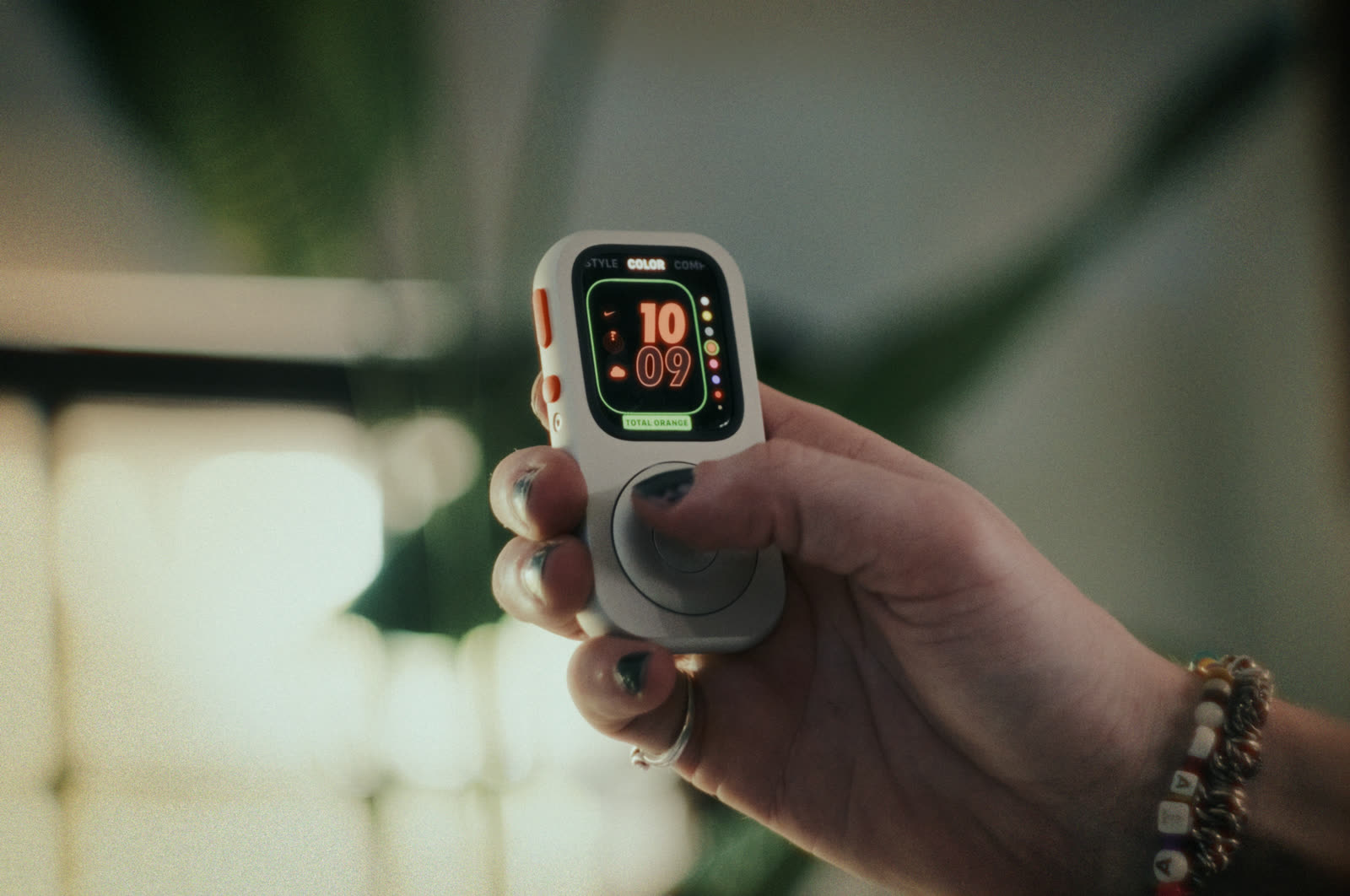
A compatible Apple Watch can become a small handheld control deck inside RePod. The Watch still supplies the screen, watchOS functions, apps, storage, battery and connectivity; RePod changes how you hold and carry it. That can suit a short errand when you want prepared music, a route home and a few chosen controls close at hand.
Apple Watch is sold separately. Match the exact Watch generation and case size to the current RePod options before choosing.
Check your Apple Watch fit. Choose your RePod. →Apple Watch Shortcuts FAQ
Why does an iPhone Shortcut fail on Apple Watch?
It may include an action, app, prompt or file location that the Watch cannot use. It may also need the iPhone, a network connection, an account sign-in or permission that is missing. Remove actions one at a time until the shortcut runs, then rebuild from the last working version.
Can every Apple Watch Shortcut run without an iPhone?
No. Some shortcuts run fully on the Watch, while others rely on Wi-Fi, cellular service or the paired iPhone. Test with the phone out of range and with the connection you expect to have.
How do I add a Shortcut to my watch face?
First confirm that the shortcut appears and runs in the Watch Shortcuts app. Then edit a compatible watch face and choose the Shortcuts complication. Availability varies by face, Watch model and software.
Sources and further reading
- Apple Watch User Guide: Use Shortcuts on Apple Watch
- Apple Shortcuts User Guide: Run shortcuts from Apple Watch
- Apple Watch User Guide: Add complications to the watch face
- Apple Watch User Guide: Use Apple Watch without its paired iPhone
- Apple Support: New in watchOS 27
- Reddit r/AppleWatch: Community shortcut ideas
- Techpod: RePod product and fit selector